
Roo Code
- Homepage: roocode.com
- Install docs: docs.roocode.com/getting-started/installing
- Gateway configuration: Anthropic provider / OpenAI Compatible provider
- Protocol: OpenAI-compatible (recommended, lets you enter TokenBay model IDs directly) / Anthropic Messages (routes to Claude, supports prompt caching)
Install
Roo Code is a VS Code extension and requires VS Code 1.84.0 or higher; compatible editors such as VSCodium and Windsurf can install it via Open VSX. For everything else, defer to the official install docs.
VS Code Marketplace (recommended)
Press Ctrl/Cmd + Shift + X to open the Extensions panel, search for Roo Code (publisher RooVeterinaryInc), install it, and reload the window when prompted. You can also install directly by Marketplace ID:
code --install-extension RooVeterinaryInc.roo-clineOpen VSX (VSCodium / Windsurf, etc.)
Search for Roo Code in your editor’s Extensions view and install it; or install it from the Open VSX Registry page.
Manual VSIX install
Download the latest .vsix from GitHub Releases, then choose Install from VSIX… from the … menu in the Extensions view.
After installation, the Roo Code icon appears in the VS Code activity bar on the left; you can check the currently installed version number in the Extensions panel. If you hit any issue, we recommend updating to the latest version first.
Connect TokenBay
How it works
Roo Code does not configure the gateway via environment variables; instead, you select a provider and fill in the endpoint and credentials in the extension’s settings panel. There are two providers for connecting to TokenBay:
- OpenAI Compatible provider (recommended): the Model ID is a free-text field, so you can directly enter any TokenBay model ID (such as
claude-sonnet-4.6,gpt-5.5). It uses the standard/chat/completions, and the Base URL must include/v1. - Anthropic provider: routes to TokenBay’s native Anthropic endpoint and supports features like prompt caching. After checking Use custom base URL, Roo Code automatically appends
/v1/messagesto the Base URL, so the Custom Base URL should be only the bare gateway address — do not include a path.
Don’t put the wrong path in the Base URL:
- For the OpenAI Compatible provider, set the Base URL to
https://api.tokenbay.com/v1(with/v1).- For the Anthropic provider, set the Custom Base URL to
https://api.tokenbay.com(bare address, no/v1, no trailing slash).
About model selection for the Anthropic provider: Roo Code’s Anthropic provider uses a preset dropdown to choose a Claude model, and the dropdown items use Anthropic’s official naming, which may not include TokenBay’s dotted version numbers (such as
claude-sonnet-4.6). If you can’t find the corresponding TokenBay model ID in the dropdown, switch to the OpenAI Compatible provider and enter the Model ID by hand. (Whether the dropdown supports custom input varies by version — defer to the actual UI of your local extension.)
1. Get an API key
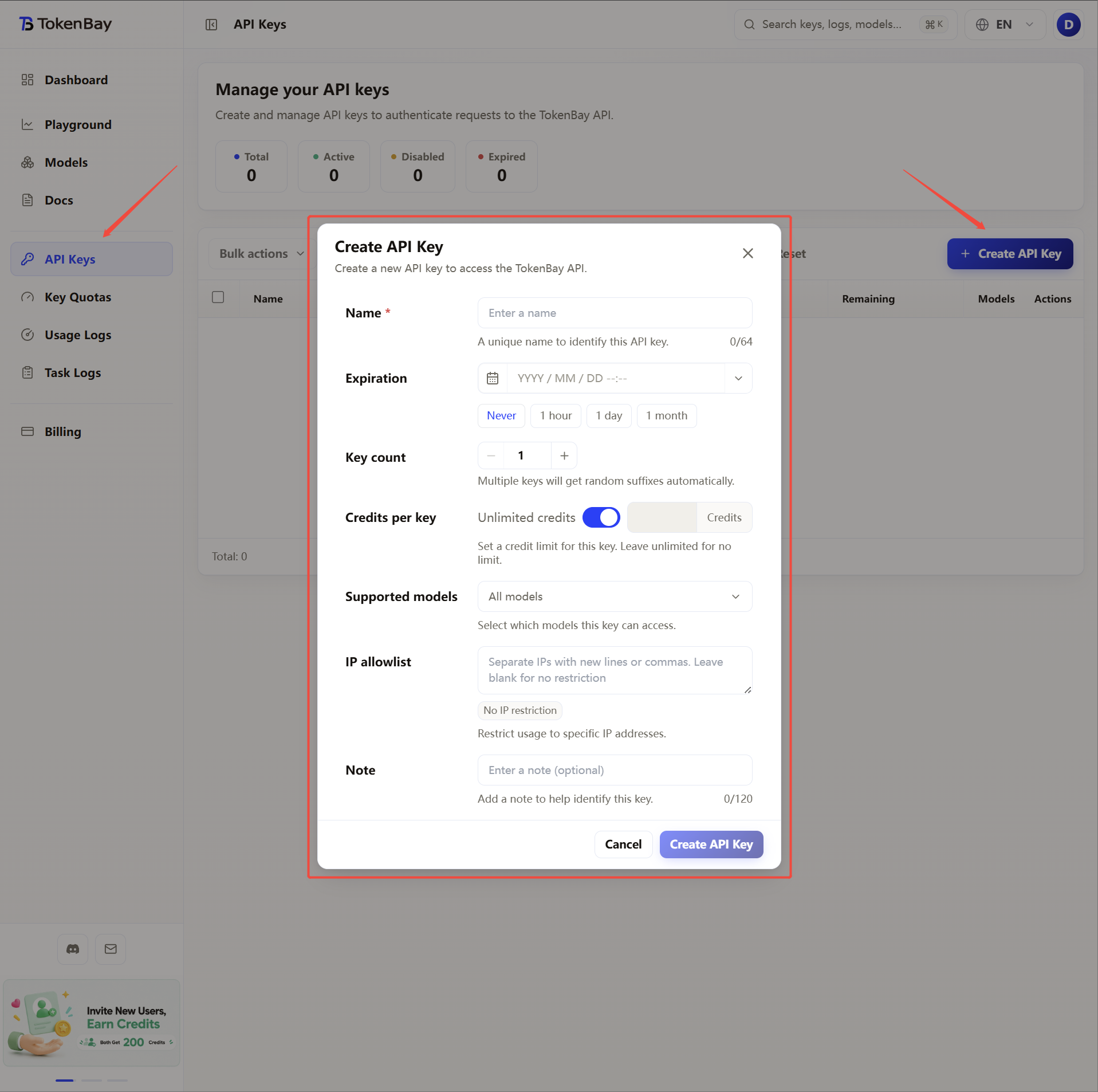
Log in to the TokenBay console → API Keys → Create Key. Copy the full string starting with sk-. The plaintext is shown only once — you cannot view it again after leaving the page.
2. Configure the OpenAI Compatible Provider (recommended)
Click the Roo Code icon on the left → the settings icon (⚙️), and fill in the provider config per the table below:
| Field | Value |
|---|---|
| API Provider | OpenAI Compatible |
| Base URL | https://api.tokenbay.com/v1 |
| API Key | Your TokenBay API key (sk-...) |
| Model | claude-sonnet-4.6 (enter the TokenBay model ID directly) |
Takes effect immediately after saving — no restart required.
3. Alternative: configure the Anthropic Provider (for prompt caching)
When you need to use the native Anthropic protocol to take advantage of prompt caching, add a new provider config:
| Field | Value |
|---|---|
| API Provider | Anthropic |
| Anthropic API Key | Your TokenBay API key (sk-...) |
| Use custom base URL | checked |
| Custom Base URL | https://api.tokenbay.com |
| Model | choose a Claude model from the dropdown (limited by the preset list; see the note above) |
4. Multiple configurations and Mode binding
Roo Code lets you save multiple provider settings as API Configuration Profiles, and allows each Mode to bind a different Profile — for example, the Architect mode uses Opus, the Code mode uses Sonnet, and the Ask mode uses Haiku, automatically scaling up or down by task complexity to save costs.
Go to the Modes tab and select the corresponding Profile for each Mode:
| Mode | Recommended Profile / model |
|---|---|
| Code | claude-sonnet-4.6 |
| Architect | claude-opus-4.8 |
| Ask | claude-haiku-4.5 |
| Debug | claude-sonnet-4.6 |
Mode and Profile are two distinct layers: a Profile is a set of provider configuration, and the Mode determines “which Profile to use.” The model only changes when you change the Mode’s binding.
5. Recommended models
| Use case | Model ID | Provider |
|---|---|---|
| Primary coding | claude-sonnet-4.6 | OpenAI Compatible / Anthropic |
| Complex refactoring / long context | claude-opus-4.8 | OpenAI Compatible / Anthropic |
| Lightweight / fast response | claude-haiku-4.5 | OpenAI Compatible / Anthropic |
| GPT coding alternative | gpt-5.3-codex | OpenAI Compatible |
| GPT general flagship | gpt-5.5 | OpenAI Compatible |
Model IDs are passed straight through to the upstream, with no prefix. For the full list of available models, see the model list.
Model name format: in TokenBay model names, version numbers only accept the dotted form (e.g.
claude-sonnet-4.6,gpt-5.5) — do not write them with hyphens (claude-sonnet-4-6,gpt-5-5).The table above is illustrative; the exact Model ID and endpoints should follow the console Models page (or the model list). Verify before connecting, and confirm that the group your API key belongs to has been authorized for that model.
6. Advanced configuration (long tasks / proxy)
- Request timeout: complex reasoning or long-context tasks take a while, and the default timeout may interrupt requests. Roo Code’s settings panel provides a request-timeout option (across versions it may be named API Request Timeout or located in advanced settings — defer to your local UI); increase it as appropriate.
- Network and proxy: the VS Code edition of Roo Code reuses VS Code’s own network/proxy settings. When behind a corporate network or firewall, configure
http.proxyin VS Code settings and make sure the proxy allows access toapi.tokenbay.com. - Auto-approve limit: Roo Code has a default cap on the number of auto-approved tool-call rounds; for complex tasks, raise it in the settings panel to reduce frequent manual confirmations.